

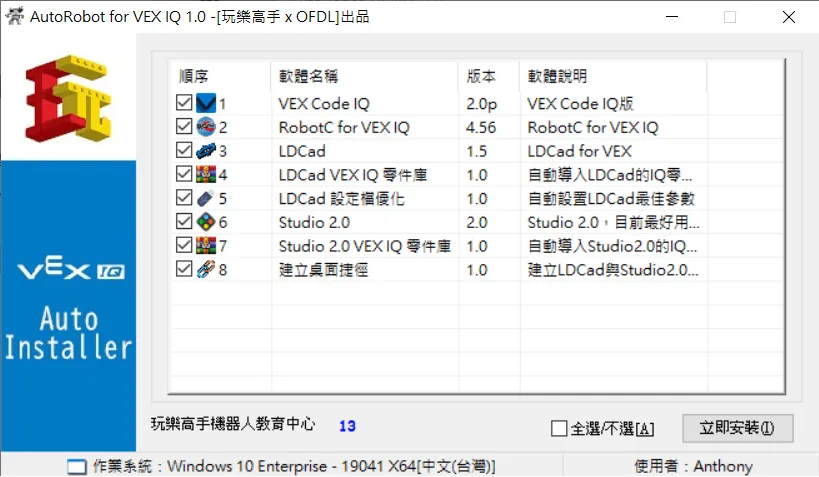
It's been a while, but Weekly Tips is back! With the website update, we've brought you something special: “VEX IQ Software Auto-Installer”, so you no longer have to fuss over installing a bunch of separate programs.
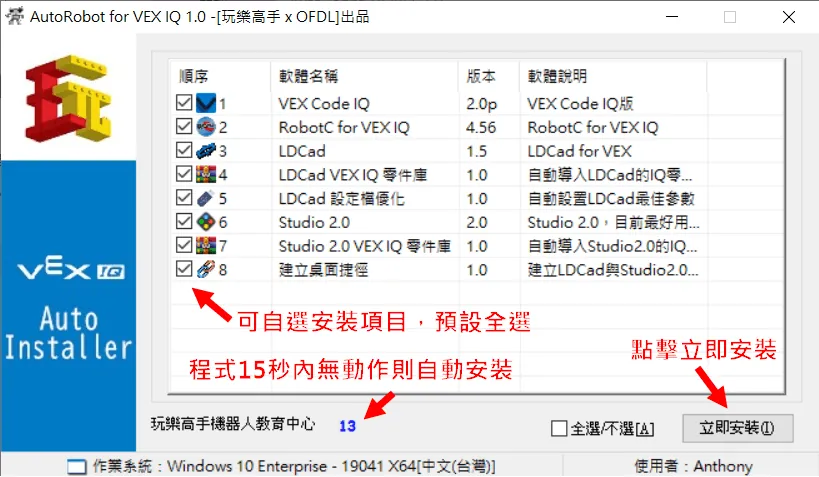
Once the software opens, just click “Install Now” at the bottom right and it will automatically install all the software you need on your computer. “Fully automatic. Fully automatic. Fully automatic.” It's that easy!
If you want to customize, you can uncheck the programs you don't want to install. By default, everything is installed.
If nothing is clicked within 15 seconds, the program automatically enters install mode. In other words, if an IT admin is deploying computers and only needs the program to launch automatically, then the installer will start automatically after 15 seconds, installing all items.
Notes
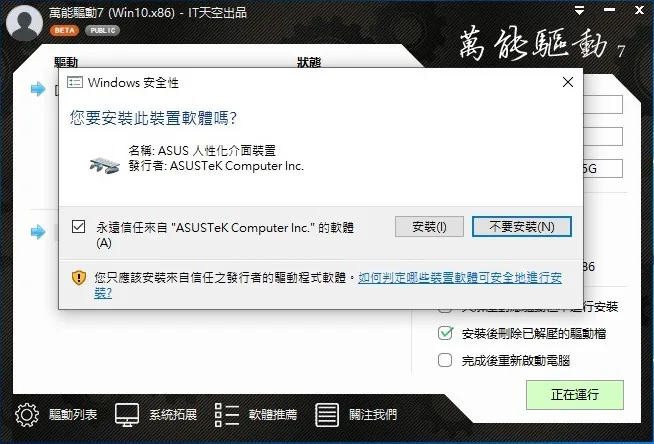
1. If UAC, antivirus software, or SmartScreen blocks the installation, please allow the program to continue so the installation isn't left incomplete.
2. Both VEXcode and ROBOTC install VEX IQ drivers. Please click “OK” on those prompts too, or your computer may not recognize VEX IQ robots later.
If you run into any other problems, leave us a comment so we can fix it.
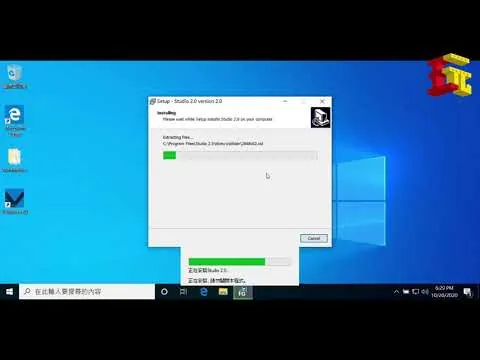
Tutorial Video
Download
Latest version 2020.10.20 1.0 (the original Google Drive download link is no longer working)